
Welcome to my Supergrow AI review of 2024!Finding the right tool for LinkedIn marketing can be tough.
Many professionals struggle with creating engaging content and maintaining a consistent brand presence.
If this sounds like you, you’re in the right place.
In this article, I’ll review Supergrow AI, a branding tool specifically for LinkedIn, to see if it fits your needs.
I’ll cover:
Let’s dive in
Supergrow Review: Quick Verdict:
What is Supergrow?
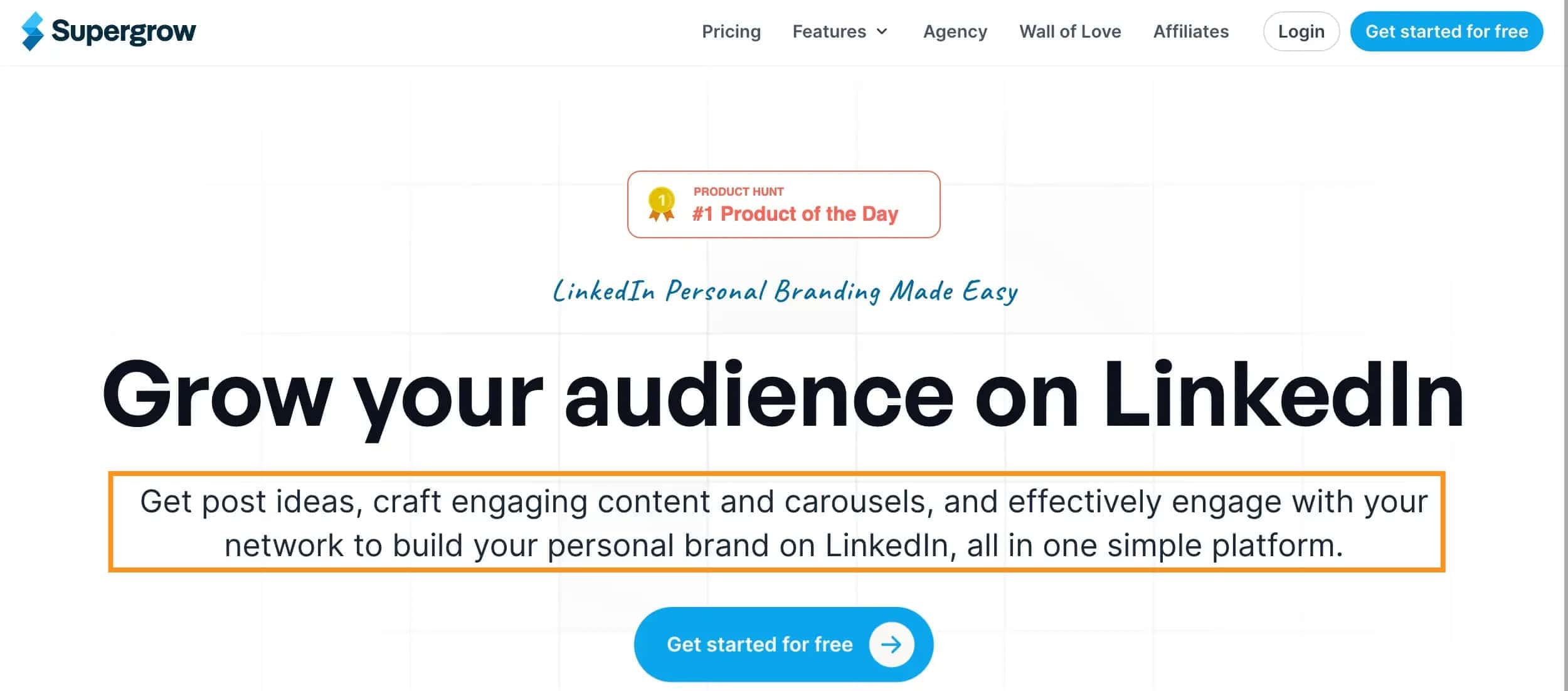
Supergrow helps you create and manage LinkedIn and social media content. It uses AI to assist in:
- Generating posts
- Scheduling them
- Providing new ideas
With Supergrow, you can start from scratch to create articles, LinkedIn posts, and even image slideshows called carousels.
Supergrow also allows you to turn an article from your website into a social media post, making it easier to share your content.
If you’re out of ideas, the tool can suggest topics to help you get started.
Also, Supergrow can send you personalized post ideas every week based on your interests and usual topics.
Without your approval, it won’t post anything, so you can review and edit everything before it goes live.
In summary, Supergrow is a straightforward tool that helps you keep your LinkedIn content fresh and engaging, making the personal brand building process easier and more efficient.
What I Like/Dislike About Supergrow AI
Pros
- Offers competitive pricing plans starting at $19/month
- Allows users to schedule their LinkedIn posts in advance
- Uses AI to create high-quality LinkedIn posts tailored to your brand’s voice and audience, saving time and effort
- Simple process to dub videos from various sources.
- You can try Supergrow free for 7 days without needing to provide credit card details.
Cons
- Supergrow’s scheduling tools are basic and less flexible
- Does not offer detailed analytics to help you understand how well your posts are performing.
- Does not offer CRM features
- Limited to LinkedIn and does not support other social media platforms
My Favorite Supergrow Features
#1. AI-Powered Fresh Content Creation
AI-powered content creation tools like Supergrow are becoming very useful for managing social media. I found this feature of Supergrow easy to use and effective.
When you log in, the dashboard gives you many options, like writing articles, creating LinkedIn posts, and creating carousels.
One feature I like is generating content from scratch.
If you want to write about “remote work tips,” just enter that topic, and the AI will create a post with useful advice and insights.
For instance, it might mention high-quality tools like Slack and Trello, and add a personal touch by emphasizing how remote work can improve work-life balance and you can increase productivity when managed effectively.
You can then edit, save, or schedule this draft.
Or you can even take this and turn it into a carousel, which I’ll elaborate on more deeply later.
#2. Different Templates For Saving Time
There are many LinkedIn post templates you can use. I showed you how to create content from scratch above. In this section, I’ll go deeper into how other templates work.
Here’s a closer look at each one:
Generate a Post from a YouTube Video
If you have a YouTube video that you want to turn into a written post, this template is perfect. Just share the link to the video, and the AI will analyze the content and generate a post based on it.
This is great for repurposing your video content into a format that can be shared on platforms like LinkedIn or your blog.
Generate a Post from an Article:
This template helps you create new posts from existing blog articles.
You just share the link to the article, and the AI will summarize the key points or create a new post inspired by the content.
This way, you can leverage your existing content to keep your social media channels active without writing new posts from scratch.
Share Your Learnings from a Book:
If you’ve read a book and want to share what you’ve learned, this template is for you.
Just input the key takeaways from the book, and the AI will craft a post highlighting these insights.
For example, if you read a book on leadership, you can share the main lessons and how they can be applied in real-life situations.
Share Tips on Your Topic of Interest:
This template allows you to share your expertise on a specific topic. Input your tips, and the AI will format them into a well-structured post.
For instance, if you’re an expert in digital marketing, you can share tips on SEO, social media strategies, or content marketing, and the AI will create a post that’s easy to read and informative.
Share Your Recent Learning:
Whether you’ve learned a new skill or had a recent experience that taught you something valuable, this template can help you share it with your audience.
Input the details of your learning, and the AI will create a post that showcases your growth. This is a great way to engage your audience by sharing personal stories and lessons.
Share Your Favorite Tool:
If there’s a tool that you love using and want to recommend to others, this template is ideal. Share the details of the tool, and the AI will create a post that explains why it’s beneficial.
For example, if you use a project management tool that has made your work more efficient, you can share its features and how it has helped you.
Share Your Recent Struggle:
Being open about challenges can resonate with your audience. Use this template to share your recent struggles.
Input the details of what you’ve been facing, and the AI will craft a post that’s both honest and engaging. This can help you connect with your audience on a deeper level by showing your vulnerability.
Format Your Content:
If you have content that’s not well-organized or hard to read, this template can help. Input your clunky content, and the AI will format it into readable and engaging posts.
This ensures that your content is clear and easy to understand, making it more likely to capture your audience’s attention.
#2. Let you capture, organize, and reuse LinkedIn content ideas
As a creator, losing a brilliant idea can be incredibly frustrating. SuperGrow’s new feature is here to help you capture, organize, and reuse LinkedIn content ideas effortlessly.
Imagine having a personal idea bank where you can store all your content inspirations.
With the SuperGrow browser extension, you can save content ideas on the go. Just copy the article link, and it creates a post for you.
Once saved, you can categorize your ideas into visual collections, making it easy to find them later. Add notes and tags to expand on your ideas and keep everything organized.
The powerful search and filtering options let you quickly locate any saved files, so you never have to waste time searching.
That’s not all. You can also refine and repurpose your saved ideas seamlessly. Browse your Swipe File library to kickstart new content creation and transform these saved gems directly into new LinkedIn posts, saving you both time and effort.
#3. Creates engaging PDF carousels to boost LinkedIn engagement
The LinkedIn carousel maker in Supergrow lets you make eye-catching carousels in minutes using ready-to-use templates and easy customization options.
You don’t need any design skills—just pick a template, add your content, and you’re good to go.
SuperGrow even has an AI content generator to help you create compelling content for your carousels.
Also, you can change background colors, add images, and customize text to fit your brand. You can also save your brand’s colors, fonts, and pictures in a Brand Kit, making it easy to apply them to new carousels with a single click.
Plus, you can schedule and publish your carousels directly from SuperGrow, saving you the hassle of juggling multiple tools.
#3. Help you manage and boost your LinkedIn interactions
This “Engage” feature is super easy to use. First, you click on the Engage button on the left side of the screen. Then, you create a new list and give it a title.
Adding people is straightforward—you can either enter their LinkedIn profile URLs one by one or upload a CSV file for bulk additions.
Once your list is set up, you can see posts from your list members by clicking on the Posts button. If no posts show up, just hit the Fetch Latest Posts button.
Engaging with these posts is a breeze. There’s an Add Comment text box where you can write your comment. You can choose the tone and type of comment you want and even add specific instructions for the AI.
After generating multiple options, you pick the one you like and click Post Comment.
This feature has saved me so much time. I can genuinely engage with relevant contacts without endlessly scrolling through my feed.
#5. LinkedIn post ideas generator
#6. Sends fresh post ideas every week without automatic publishing.
#6. Provides inspiration by showing what’s trending on LinkedIn
Supergrow also helps when you run out of ideas. It suggests topics based on what’s trending on LinkedIn. This is great for keeping your posts regular and interesting.
#7. Set Your Content Style for Personalized AI-Generated Posts
Setting your content style in SuperGrow is a game-changer for content generation. It makes everything so much easier and more personalized.
I recently tried it out, and it really helped streamline my workflow.
You start by going to the workspace settings and clicking on the content writing style tab.
From there, you can create a new style by adding your existing posts or pasting new content.
The system takes about 30 seconds to analyze your writing style.
Once it’s ready, you can use this custom style in the post generator.
This feature enables you to produce posts that sound just like you wrote them, making your content more authentic and engaging.
H2: Supergrow Pricing Plans
H2: Refund Policy
H2: New Features!
H2: Supergrow FAQs
H2: Possible Alternatives to Supergrow
H2: Final Thoughts
Supergrow Review 2024:
branding tool
Supergrow Review: Quick Verdict:
What is Supergrow?
Supergrow helps you create and manage LinkedIn and social media content. It uses AI to assist in generating posts, scheduling them, and providing new ideas.
With Supergrow, you can start from scratch to create articles, LinkedIn posts, and even image slideshows called carousels.
Supergrow also allows you to turn an article from your website into a social media post, making it easier to share your content. If you’re out of ideas, the tool can suggest topics to help you get started.
Additionally, Supergrow can send you personalized post ideas every week based on your interests and usual topics. Without your approval, it won’t post anything, so you can review and edit everything before it goes live.
In summary, Supergrow is a straightforward tool that helps you keep your LinkedIn content fresh and engaging, making the personal brand building process easier and more efficient.
Supergrow Pros and Cons
Pros
Connect to multiple LinkedIn Accounts
Compatible with LinkedIn, Facebook, Twitter (X), Instagram, and more.
Cons
My Favorite Supergrow Features
#1. AI-Powered Fresh Content Creation
AI-powered content creation tools like Supergrow are becoming very useful for managing social media. I found this feature of Supergrow easy to use and effective.
When you log in, the dashboard gives you many options, like writing articles, creating LinkedIn posts, and creating carousels.
One feature I like is generating content from scratch.
For example, if you want to write a post about oil painting supplies, you can type in your topic and choose a tone, such as ‘excited’ or ‘professional.’
The AI will then create a draft for you, mentioning high-quality brands like Windsor & Newton paints and even adding a personal touch, like how oil painting is more than just a hobby—it’s a way to express your emotions and thoughts on canvas.
[For example, if you want to write about “remote work tips,” just enter that topic, and the AI will create a post with useful advice and insights. You can then edit the draft to add your personal touch before posting.]
You can then edit, save, or schedule this draft. You can also post it manually on other social platforms like Facebook, Twitter, or Instagram.
You can even take this and turn into a carousel, which I’ll elaborate on more deeply later.
#2. Different Templates For Saving Time
There are many LinkedIn post templates you can use. I showed you how to create content from scratch above. In this section, I’ll go deeper into how other templates work.
Here’s a closer look at each one:
Generate a Post from a YouTube Video
If you have a YouTube video that you want to turn into a written post, this template is perfect. Just share the link to the video, and the AI will analyze the content and generate a post based on it.
This is great for repurposing your video content into a format that can be shared on platforms like LinkedIn or your blog.
Generate a Post from an Article:
This template helps you create new posts from existing blog articles.
You just share the link to the article, and the AI will summarize the key points or create a new post inspired by the content.
This way, you can leverage your existing content to keep your social media channels active without writing new posts from scratch.
Share Your Learnings from a Book:
If you’ve read a book and want to share what you’ve learned, this template is for you.
Just input the key takeaways from the book, and the AI will craft a post highlighting these insights.
For example, if you read a book on leadership, you can share the main lessons and how they can be applied in real-life situations.
Share Tips on Your Topic of Interest:
This template allows you to share your expertise on a specific topic. Input your tips, and the AI will format them into a well-structured post.
For instance, if you’re an expert in digital marketing, you can share tips on SEO, social media strategies, or content marketing, and the AI will create a post that’s easy to read and informative.
Share Your Recent Learning:
Whether you’ve learned a new skill or had a recent experience that taught you something valuable, this template can help you share it with your audience.
Input the details of your learning, and the AI will create a post that showcases your growth. This is a great way to engage your audience by sharing personal stories and lessons.
Share Your Favorite Tool:
If there’s a tool that you love using and want to recommend to others, this template is ideal. Share the details of the tool, and the AI will create a post that explains why it’s beneficial.
For example, if you use a project management tool that has made your work more efficient, you can share its features and how it has helped you.
Share Your Recent Struggle:
Being open about challenges can resonate with your audience. Use this template to share your recent struggles.
Input the details of what you’ve been facing, and the AI will craft a post that’s both honest and engaging. This can help you connect with your audience on a deeper level by showing your vulnerability.
Format Your Content:
If you have content that’s not well-organized or hard to read, this template can help. Input your clunky content, and the AI will format it into readable and engaging posts.
This ensures that your content is clear and easy to understand, making it more likely to capture your audience’s attention.
#2. Let you capture, organize, and reuse LinkedIn content ideas
As a creator, losing a brilliant idea can be incredibly frustrating. SuperGrow’s new feature is here to help you capture, organize, and reuse LinkedIn content ideas effortlessly.
Imagine having a personal idea bank where you can store all your content inspirations.
With the SuperGrow browser extension, you can save content ideas on the go. Just copy the article link, and it creates a post for you.
Once saved, you can categorize your ideas into visual collections, making it easy to find them later. Add notes and tags to expand on your ideas and keep everything organized.
The powerful search and filtering options let you quickly locate any saved files, so you never have to waste time searching.
That’s not all. You can also refine and repurpose your saved ideas seamlessly. Browse your Swipe File library to kickstart new content creation and transform these saved gems directly into new LinkedIn posts, saving you both time and effort.
#3. Creates engaging PDF carousels to boost LinkedIn engagement
The LinkedIn carousel maker in Supergrow lets you make eye-catching carousels in minutes using ready-to-use templates and easy customization options.
You don’t need any design skills—just pick a template, add your content, and you’re good to go.
SuperGrow even has an AI content generator to help you create compelling content for your carousels.
Also, you can change background colors, add images, and customize text to fit your brand. You can also save your brand’s colors, fonts, and pictures in a Brand Kit, making it easy to apply them to new carousels with a single click.
Plus, you can schedule and publish your carousels directly from SuperGrow, saving you the hassle of juggling multiple tools.
#3. Help you manage and boost your LinkedIn interactions
This “Engage” feature is super easy to use. First, you click on the Engage button on the left side of the screen. Then, you create a new list and give it a title.
Adding people is straightforward—you can either enter their LinkedIn profile URLs one by one or upload a CSV file for bulk additions.
Once your list is set up, you can see posts from your list members by clicking on the Posts button. If no posts show up, just hit the Fetch Latest Posts button.
Engaging with these posts is a breeze. There’s an Add Comment text box where you can write your comment. You can choose the tone and type of comment you want and even add specific instructions for the AI.
After generating multiple options, you pick the one you like and click Post Comment.
This feature has saved me so much time. I can genuinely engage with relevant contacts without endlessly scrolling through my feed.
#5. LinkedIn post ideas generator
#6. Sends fresh post ideas every week without automatic publishing.
#6. Provides inspiration by showing what’s trending on LinkedIn
Supergrow also helps when you run out of ideas. It suggests topics based on what’s trending on LinkedIn. This is great for keeping your posts regular and interesting.
#7. Set Your Content Style for Personalized AI-Generated Posts
Setting your content style in SuperGrow is a game-changer for content generation. It makes everything so much easier and more personalized.
I recently tried it out, and it really helped streamline my workflow.
You start by going to the workspace settings and clicking on the content writing style tab.
From there, you can create a new style by adding your existing posts or pasting new content.
The system takes about 30 seconds to analyze your writing style.
Once it’s ready, you can use this custom style in the post generator.
This feature enables you to produce posts that sound just like you wrote them, making your content more authentic and engaging.
H2: Supergrow Pricing Plans
H2: Refund Policy
H2: New Features!
H2: Supergrow FAQs
H2: Possible Alternatives to Supergrow
H2: Final Thoughts
branding tool
Supergrow Review: Quick Verdict:
What is Supergrow?
Supergrow helps you create and manage LinkedIn and social media content. It uses AI to assist in generating posts, scheduling them, and providing new ideas.
With Supergrow, you can start from scratch to create articles, LinkedIn posts, and even image slideshows called carousels.
Supergrow also allows you to turn an article from your website into a social media post, making it easier to share your content. If you’re out of ideas, the tool can suggest topics to help you get started.
Additionally, Supergrow can send you personalized post ideas every week based on your interests and usual topics. Without your approval, it won’t post anything, so you can review and edit everything before it goes live.
In summary, Supergrow is a straightforward tool that helps you keep your LinkedIn content fresh and engaging, making the personal brand building process easier and more efficient.
Supergrow Pros and Cons
Pros
Connect to multiple LinkedIn Accounts
Compatible with LinkedIn, Facebook, Twitter (X), Instagram, and more.
Cons
My Favorite Supergrow Features
#1. AI-Powered Fresh Content Creation
AI-powered content creation tools like Supergrow are becoming very useful for managing social media. I found this feature of Supergrow easy to use and effective.
When you log in, the dashboard gives you many options, like writing articles, creating LinkedIn posts, and creating carousels.
One feature I like is generating content from scratch.
For example, if you want to write a post about oil painting supplies, you can type in your topic and choose a tone, such as ‘excited’ or ‘professional.’
The AI will then create a draft for you, mentioning high-quality brands like Windsor & Newton paints and even adding a personal touch, like how oil painting is more than just a hobby—it’s a way to express your emotions and thoughts on canvas.
[For example, if you want to write about “remote work tips,” just enter that topic, and the AI will create a post with useful advice and insights. You can then edit the draft to add your personal touch before posting.]
You can then edit, save, or schedule this draft. You can also post it manually on other social platforms like Facebook, Twitter, or Instagram.
You can even take this and turn into a carousel, which I’ll elaborate on more deeply later.
#2. Different Templates For Saving Time
There are many LinkedIn post templates you can use. I showed you how to create content from scratch above. In this section, I’ll go deeper into how other templates work.
Here’s a closer look at each one:
Generate a Post from a YouTube Video
If you have a YouTube video that you want to turn into a written post, this template is perfect. Just share the link to the video, and the AI will analyze the content and generate a post based on it.
This is great for repurposing your video content into a format that can be shared on platforms like LinkedIn or your blog.
Generate a Post from an Article:
This template helps you create new posts from existing blog articles.
You just share the link to the article, and the AI will summarize the key points or create a new post inspired by the content.
This way, you can leverage your existing content to keep your social media channels active without writing new posts from scratch.
Share Your Learnings from a Book:
If you’ve read a book and want to share what you’ve learned, this template is for you.
Just input the key takeaways from the book, and the AI will craft a post highlighting these insights.
For example, if you read a book on leadership, you can share the main lessons and how they can be applied in real-life situations.
Share Tips on Your Topic of Interest:
This template allows you to share your expertise on a specific topic. Input your tips, and the AI will format them into a well-structured post.
For instance, if you’re an expert in digital marketing, you can share tips on SEO, social media strategies, or content marketing, and the AI will create a post that’s easy to read and informative.
Share Your Recent Learning:
Whether you’ve learned a new skill or had a recent experience that taught you something valuable, this template can help you share it with your audience.
Input the details of your learning, and the AI will create a post that showcases your growth. This is a great way to engage your audience by sharing personal stories and lessons.
Share Your Favorite Tool:
If there’s a tool that you love using and want to recommend to others, this template is ideal. Share the details of the tool, and the AI will create a post that explains why it’s beneficial.
For example, if you use a project management tool that has made your work more efficient, you can share its features and how it has helped you.
Share Your Recent Struggle:
Being open about challenges can resonate with your audience. Use this template to share your recent struggles.
Input the details of what you’ve been facing, and the AI will craft a post that’s both honest and engaging. This can help you connect with your audience on a deeper level by showing your vulnerability.
Format Your Content:
If you have content that’s not well-organized or hard to read, this template can help. Input your clunky content, and the AI will format it into readable and engaging posts.
This ensures that your content is clear and easy to understand, making it more likely to capture your audience’s attention.
#2. Let you capture, organize, and reuse LinkedIn content ideas
As a creator, losing a brilliant idea can be incredibly frustrating. SuperGrow’s new feature is here to help you capture, organize, and reuse LinkedIn content ideas effortlessly.
Imagine having a personal idea bank where you can store all your content inspirations.
With the SuperGrow browser extension, you can save content ideas on the go. Just copy the article link, and it creates a post for you.
Once saved, you can categorize your ideas into visual collections, making it easy to find them later. Add notes and tags to expand on your ideas and keep everything organized.
The powerful search and filtering options let you quickly locate any saved files, so you never have to waste time searching.
That’s not all. You can also refine and repurpose your saved ideas seamlessly. Browse your Swipe File library to kickstart new content creation and transform these saved gems directly into new LinkedIn posts, saving you both time and effort.
#3. Creates engaging PDF carousels to boost LinkedIn engagement
The LinkedIn carousel maker in Supergrow lets you make eye-catching carousels in minutes using ready-to-use templates and easy customization options.
You don’t need any design skills—just pick a template, add your content, and you’re good to go.
SuperGrow even has an AI content generator to help you create compelling content for your carousels.
Also, you can change background colors, add images, and customize text to fit your brand. You can also save your brand’s colors, fonts, and pictures in a Brand Kit, making it easy to apply them to new carousels with a single click.
Plus, you can schedule and publish your carousels directly from SuperGrow, saving you the hassle of juggling multiple tools.
#3. Help you manage and boost your LinkedIn interactions
This “Engage” feature is super easy to use. First, you click on the Engage button on the left side of the screen. Then, you create a new list and give it a title.
Adding people is straightforward—you can either enter their LinkedIn profile URLs one by one or upload a CSV file for bulk additions.
Once your list is set up, you can see posts from your list members by clicking on the Posts button. If no posts show up, just hit the Fetch Latest Posts button.
Engaging with these posts is a breeze. There’s an Add Comment text box where you can write your comment. You can choose the tone and type of comment you want and even add specific instructions for the AI.
After generating multiple options, you pick the one you like and click Post Comment.
This feature has saved me so much time. I can genuinely engage with relevant contacts without endlessly scrolling through my feed.
#5. LinkedIn post ideas generator
#6. Sends fresh post ideas every week without automatic publishing.
#6. Provides inspiration by showing what’s trending on LinkedIn
Supergrow also helps when you run out of ideas. It suggests topics based on what’s trending on LinkedIn. This is great for keeping your posts regular and interesting.
#7. Set Your Content Style for Personalized AI-Generated Posts
Setting your content style in SuperGrow is a game-changer for content generation. It makes everything so much easier and more personalized.
I recently tried it out, and it really helped streamline my workflow.
You start by going to the workspace settings and clicking on the content writing style tab.
From there, you can create a new style by adding your existing posts or pasting new content.
The system takes about 30 seconds to analyze your writing style.
Once it’s ready, you can use this custom style in the post generator.
This feature enables you to produce posts that sound just like you wrote them, making your content more authentic and engaging.
H2: Supergrow Pricing Plans
H2: Refund Policy
H2: New Features!
H2: Supergrow FAQs
H2: Possible Alternatives to Supergrow
H2: Final Thoughts
Supergrow Review 2024:
branding tool
Supergrow Review: Quick Verdict:
What is Supergrow?
Supergrow helps you create and manage LinkedIn and social media content. It uses AI to assist in generating posts, scheduling them, and providing new ideas.
With Supergrow, you can start from scratch to create articles, LinkedIn posts, and even image slideshows called carousels.
Supergrow also allows you to turn an article from your website into a social media post, making it easier to share your content. If you’re out of ideas, the tool can suggest topics to help you get started.
Additionally, Supergrow can send you personalized post ideas every week based on your interests and usual topics. Without your approval, it won’t post anything, so you can review and edit everything before it goes live.
In summary, Supergrow is a straightforward tool that helps you keep your LinkedIn content fresh and engaging, making the personal brand building process easier and more efficient.
Supergrow Pros and Cons
Pros
Connect to multiple LinkedIn Accounts
Compatible with LinkedIn, Facebook, Twitter (X), Instagram, and more.
Cons
My Favorite Supergrow Features
#1. AI-Powered Fresh Content Creation
AI-powered content creation tools like Supergrow are becoming very useful for managing social media. I found this feature of Supergrow easy to use and effective.
When you log in, the dashboard gives you many options, like writing articles, creating LinkedIn posts, and creating carousels.
One feature I like is generating content from scratch.
For example, if you want to write a post about oil painting supplies, you can type in your topic and choose a tone, such as ‘excited’ or ‘professional.’
The AI will then create a draft for you, mentioning high-quality brands like Windsor & Newton paints and even adding a personal touch, like how oil painting is more than just a hobby—it’s a way to express your emotions and thoughts on canvas.
[For example, if you want to write about “remote work tips,” just enter that topic, and the AI will create a post with useful advice and insights. You can then edit the draft to add your personal touch before posting.]
You can then edit, save, or schedule this draft. You can also post it manually on other social platforms like Facebook, Twitter, or Instagram.
You can even take this and turn into a carousel, which I’ll elaborate on more deeply later.
#2. Different Templates For Saving Time
There are many LinkedIn post templates you can use. I showed you how to create content from scratch above. In this section, I’ll go deeper into how other templates work.
Here’s a closer look at each one:
Generate a Post from a YouTube Video
If you have a YouTube video that you want to turn into a written post, this template is perfect. Just share the link to the video, and the AI will analyze the content and generate a post based on it.
This is great for repurposing your video content into a format that can be shared on platforms like LinkedIn or your blog.
Generate a Post from an Article:
This template helps you create new posts from existing blog articles.
You just share the link to the article, and the AI will summarize the key points or create a new post inspired by the content.
This way, you can leverage your existing content to keep your social media channels active without writing new posts from scratch.
Share Your Learnings from a Book:
If you’ve read a book and want to share what you’ve learned, this template is for you.
Just input the key takeaways from the book, and the AI will craft a post highlighting these insights.
For example, if you read a book on leadership, you can share the main lessons and how they can be applied in real-life situations.
Share Tips on Your Topic of Interest:
This template allows you to share your expertise on a specific topic. Input your tips, and the AI will format them into a well-structured post.
For instance, if you’re an expert in digital marketing, you can share tips on SEO, social media strategies, or content marketing, and the AI will create a post that’s easy to read and informative.
Share Your Recent Learning:
Whether you’ve learned a new skill or had a recent experience that taught you something valuable, this template can help you share it with your audience.
Input the details of your learning, and the AI will create a post that showcases your growth. This is a great way to engage your audience by sharing personal stories and lessons.
Share Your Favorite Tool:
If there’s a tool that you love using and want to recommend to others, this template is ideal. Share the details of the tool, and the AI will create a post that explains why it’s beneficial.
For example, if you use a project management tool that has made your work more efficient, you can share its features and how it has helped you.
Share Your Recent Struggle:
Being open about challenges can resonate with your audience. Use this template to share your recent struggles.
Input the details of what you’ve been facing, and the AI will craft a post that’s both honest and engaging. This can help you connect with your audience on a deeper level by showing your vulnerability.
Format Your Content:
If you have content that’s not well-organized or hard to read, this template can help. Input your clunky content, and the AI will format it into readable and engaging posts.
This ensures that your content is clear and easy to understand, making it more likely to capture your audience’s attention.
#2. Let you capture, organize, and reuse LinkedIn content ideas
As a creator, losing a brilliant idea can be incredibly frustrating. SuperGrow’s new feature is here to help you capture, organize, and reuse LinkedIn content ideas effortlessly.
Imagine having a personal idea bank where you can store all your content inspirations.
With the SuperGrow browser extension, you can save content ideas on the go. Just copy the article link, and it creates a post for you.
Once saved, you can categorize your ideas into visual collections, making it easy to find them later. Add notes and tags to expand on your ideas and keep everything organized.
The powerful search and filtering options let you quickly locate any saved files, so you never have to waste time searching.
That’s not all. You can also refine and repurpose your saved ideas seamlessly. Browse your Swipe File library to kickstart new content creation and transform these saved gems directly into new LinkedIn posts, saving you both time and effort.
#3. Creates engaging PDF carousels to boost LinkedIn engagement
The LinkedIn carousel maker in Supergrow lets you make eye-catching carousels in minutes using ready-to-use templates and easy customization options.
You don’t need any design skills—just pick a template, add your content, and you’re good to go.
SuperGrow even has an AI content generator to help you create compelling content for your carousels.
Also, you can change background colors, add images, and customize text to fit your brand. You can also save your brand’s colors, fonts, and pictures in a Brand Kit, making it easy to apply them to new carousels with a single click.
Plus, you can schedule and publish your carousels directly from SuperGrow, saving you the hassle of juggling multiple tools.
#3. Help you manage and boost your LinkedIn interactions
This “Engage” feature is super easy to use. First, you click on the Engage button on the left side of the screen. Then, you create a new list and give it a title.
Adding people is straightforward—you can either enter their LinkedIn profile URLs one by one or upload a CSV file for bulk additions.
Once your list is set up, you can see posts from your list members by clicking on the Posts button. If no posts show up, just hit the Fetch Latest Posts button.
Engaging with these posts is a breeze. There’s an Add Comment text box where you can write your comment. You can choose the tone and type of comment you want and even add specific instructions for the AI.
After generating multiple options, you pick the one you like and click Post Comment.
This feature has saved me so much time. I can genuinely engage with relevant contacts without endlessly scrolling through my feed.
#5. LinkedIn post ideas generator
#6. Sends fresh post ideas every week without automatic publishing.
#6. Provides inspiration by showing what’s trending on LinkedIn
Supergrow also helps when you run out of ideas. It suggests topics based on what’s trending on LinkedIn. This is great for keeping your posts regular and interesting.
#7. Set Your Content Style for Personalized AI-Generated Posts
Setting your content style in SuperGrow is a game-changer for content generation. It makes everything so much easier and more personalized.
I recently tried it out, and it really helped streamline my workflow.
You start by going to the workspace settings and clicking on the content writing style tab.
From there, you can create a new style by adding your existing posts or pasting new content.
The system takes about 30 seconds to analyze your writing style.
Once it’s ready, you can use this custom style in the post generator.
This feature enables you to produce posts that sound just like you wrote them, making your content more authentic and engaging.
H2: Supergrow Pricing Plans
H2: Refund Policy
H2: New Features!
H2: Supergrow FAQs
H2: Possible Alternatives to Supergrow
H2: Final Thoughts
branding tool
Supergrow Review: Quick Verdict:
What is Supergrow?
Supergrow helps you create and manage LinkedIn and social media content. It uses AI to assist in generating posts, scheduling them, and providing new ideas.
With Supergrow, you can start from scratch to create articles, LinkedIn posts, and even image slideshows called carousels.
Supergrow also allows you to turn an article from your website into a social media post, making it easier to share your content. If you’re out of ideas, the tool can suggest topics to help you get started.
Additionally, Supergrow can send you personalized post ideas every week based on your interests and usual topics. Without your approval, it won’t post anything, so you can review and edit everything before it goes live.
In summary, Supergrow is a straightforward tool that helps you keep your LinkedIn content fresh and engaging, making the personal brand building process easier and more efficient.
Supergrow Pros and Cons
Pros
Connect to multiple LinkedIn Accounts
Compatible with LinkedIn, Facebook, Twitter (X), Instagram, and more.
Cons
My Favorite Supergrow Features
#1. AI-Powered Fresh Content Creation
AI-powered content creation tools like Supergrow are becoming very useful for managing social media. I found this feature of Supergrow easy to use and effective.
When you log in, the dashboard gives you many options, like writing articles, creating LinkedIn posts, and creating carousels.
One feature I like is generating content from scratch.
For example, if you want to write a post about oil painting supplies, you can type in your topic and choose a tone, such as ‘excited’ or ‘professional.’
The AI will then create a draft for you, mentioning high-quality brands like Windsor & Newton paints and even adding a personal touch, like how oil painting is more than just a hobby—it’s a way to express your emotions and thoughts on canvas.
[For example, if you want to write about “remote work tips,” just enter that topic, and the AI will create a post with useful advice and insights. You can then edit the draft to add your personal touch before posting.]
You can then edit, save, or schedule this draft. You can also post it manually on other social platforms like Facebook, Twitter, or Instagram.
You can even take this and turn into a carousel, which I’ll elaborate on more deeply later.
#2. Different Templates For Saving Time
There are many LinkedIn post templates you can use. I showed you how to create content from scratch above. In this section, I’ll go deeper into how other templates work.
Here’s a closer look at each one:
Generate a Post from a YouTube Video
If you have a YouTube video that you want to turn into a written post, this template is perfect. Just share the link to the video, and the AI will analyze the content and generate a post based on it.
This is great for repurposing your video content into a format that can be shared on platforms like LinkedIn or your blog.
Generate a Post from an Article:
This template helps you create new posts from existing blog articles.
You just share the link to the article, and the AI will summarize the key points or create a new post inspired by the content.
This way, you can leverage your existing content to keep your social media channels active without writing new posts from scratch.
Share Your Learnings from a Book:
If you’ve read a book and want to share what you’ve learned, this template is for you.
Just input the key takeaways from the book, and the AI will craft a post highlighting these insights.
For example, if you read a book on leadership, you can share the main lessons and how they can be applied in real-life situations.
Share Tips on Your Topic of Interest:
This template allows you to share your expertise on a specific topic. Input your tips, and the AI will format them into a well-structured post.
For instance, if you’re an expert in digital marketing, you can share tips on SEO, social media strategies, or content marketing, and the AI will create a post that’s easy to read and informative.
Share Your Recent Learning:
Whether you’ve learned a new skill or had a recent experience that taught you something valuable, this template can help you share it with your audience.
Input the details of your learning, and the AI will create a post that showcases your growth. This is a great way to engage your audience by sharing personal stories and lessons.
Share Your Favorite Tool:
If there’s a tool that you love using and want to recommend to others, this template is ideal. Share the details of the tool, and the AI will create a post that explains why it’s beneficial.
For example, if you use a project management tool that has made your work more efficient, you can share its features and how it has helped you.
Share Your Recent Struggle:
Being open about challenges can resonate with your audience. Use this template to share your recent struggles.
Input the details of what you’ve been facing, and the AI will craft a post that’s both honest and engaging. This can help you connect with your audience on a deeper level by showing your vulnerability.
Format Your Content:
If you have content that’s not well-organized or hard to read, this template can help. Input your clunky content, and the AI will format it into readable and engaging posts.
This ensures that your content is clear and easy to understand, making it more likely to capture your audience’s attention.
#2. Let you capture, organize, and reuse LinkedIn content ideas
As a creator, losing a brilliant idea can be incredibly frustrating. SuperGrow’s new feature is here to help you capture, organize, and reuse LinkedIn content ideas effortlessly.
Imagine having a personal idea bank where you can store all your content inspirations.
With the SuperGrow browser extension, you can save content ideas on the go. Just copy the article link, and it creates a post for you.
Once saved, you can categorize your ideas into visual collections, making it easy to find them later. Add notes and tags to expand on your ideas and keep everything organized.
The powerful search and filtering options let you quickly locate any saved files, so you never have to waste time searching.
That’s not all. You can also refine and repurpose your saved ideas seamlessly. Browse your Swipe File library to kickstart new content creation and transform these saved gems directly into new LinkedIn posts, saving you both time and effort.
#3. Creates engaging PDF carousels to boost LinkedIn engagement
The LinkedIn carousel maker in Supergrow lets you make eye-catching carousels in minutes using ready-to-use templates and easy customization options.
You don’t need any design skills—just pick a template, add your content, and you’re good to go.
SuperGrow even has an AI content generator to help you create compelling content for your carousels.
Also, you can change background colors, add images, and customize text to fit your brand. You can also save your brand’s colors, fonts, and pictures in a Brand Kit, making it easy to apply them to new carousels with a single click.
Plus, you can schedule and publish your carousels directly from SuperGrow, saving you the hassle of juggling multiple tools.
#3. Help you manage and boost your LinkedIn interactions
This “Engage” feature is super easy to use. First, you click on the Engage button on the left side of the screen. Then, you create a new list and give it a title.
Adding people is straightforward—you can either enter their LinkedIn profile URLs one by one or upload a CSV file for bulk additions.
Once your list is set up, you can see posts from your list members by clicking on the Posts button. If no posts show up, just hit the Fetch Latest Posts button.
Engaging with these posts is a breeze. There’s an Add Comment text box where you can write your comment. You can choose the tone and type of comment you want and even add specific instructions for the AI.
After generating multiple options, you pick the one you like and click Post Comment.
This feature has saved me so much time. I can genuinely engage with relevant contacts without endlessly scrolling through my feed.
#5. LinkedIn post ideas generator
#6. Sends fresh post ideas every week without automatic publishing.
#6. Provides inspiration by showing what’s trending on LinkedIn
Supergrow also helps when you run out of ideas. It suggests topics based on what’s trending on LinkedIn. This is great for keeping your posts regular and interesting.
#7. Set Your Content Style for Personalized AI-Generated Posts
Setting your content style in SuperGrow is a game-changer for content generation. It makes everything so much easier and more personalized.
I recently tried it out, and it really helped streamline my workflow.
You start by going to the workspace settings and clicking on the content writing style tab.
From there, you can create a new style by adding your existing posts or pasting new content.
The system takes about 30 seconds to analyze your writing style.
Once it’s ready, you can use this custom style in the post generator.
This feature enables you to produce posts that sound just like you wrote them, making your content more authentic and engaging.
H2: Supergrow Pricing Plans
H2: Refund Policy
H2: New Features!
H2: Supergrow FAQs
H2: Possible Alternatives to Supergrow
H2: Final Thoughts
Supergrow Review 2024:
branding tool
Supergrow Review: Quick Verdict:
What is Supergrow?
Supergrow helps you create and manage LinkedIn and social media content. It uses AI to assist in generating posts, scheduling them, and providing new ideas.
With Supergrow, you can start from scratch to create articles, LinkedIn posts, and even image slideshows called carousels.
Supergrow also allows you to turn an article from your website into a social media post, making it easier to share your content. If you’re out of ideas, the tool can suggest topics to help you get started.
Additionally, Supergrow can send you personalized post ideas every week based on your interests and usual topics. Without your approval, it won’t post anything, so you can review and edit everything before it goes live.
In summary, Supergrow is a straightforward tool that helps you keep your LinkedIn content fresh and engaging, making the personal brand building process easier and more efficient.
Supergrow Pros and Cons
Pros
Connect to multiple LinkedIn Accounts
Compatible with LinkedIn, Facebook, Twitter (X), Instagram, and more.
Cons
My Favorite Supergrow Features
#1. AI-Powered Fresh Content Creation
AI-powered content creation tools like Supergrow are becoming very useful for managing social media. I found this feature of Supergrow easy to use and effective.
When you log in, the dashboard gives you many options, like writing articles, creating LinkedIn posts, and creating carousels.
One feature I like is generating content from scratch.
For example, if you want to write a post about oil painting supplies, you can type in your topic and choose a tone, such as ‘excited’ or ‘professional.’
The AI will then create a draft for you, mentioning high-quality brands like Windsor & Newton paints and even adding a personal touch, like how oil painting is more than just a hobby—it’s a way to express your emotions and thoughts on canvas.
[For example, if you want to write about “remote work tips,” just enter that topic, and the AI will create a post with useful advice and insights. You can then edit the draft to add your personal touch before posting.]
You can then edit, save, or schedule this draft. You can also post it manually on other social platforms like Facebook, Twitter, or Instagram.
You can even take this and turn into a carousel, which I’ll elaborate on more deeply later.
#2. Different Templates For Saving Time
There are many LinkedIn post templates you can use. I showed you how to create content from scratch above. In this section, I’ll go deeper into how other templates work.
Here’s a closer look at each one:
Generate a Post from a YouTube Video
If you have a YouTube video that you want to turn into a written post, this template is perfect. Just share the link to the video, and the AI will analyze the content and generate a post based on it.
This is great for repurposing your video content into a format that can be shared on platforms like LinkedIn or your blog.
Generate a Post from an Article:
This template helps you create new posts from existing blog articles.
You just share the link to the article, and the AI will summarize the key points or create a new post inspired by the content.
This way, you can leverage your existing content to keep your social media channels active without writing new posts from scratch.
Share Your Learnings from a Book:
If you’ve read a book and want to share what you’ve learned, this template is for you.
Just input the key takeaways from the book, and the AI will craft a post highlighting these insights.
For example, if you read a book on leadership, you can share the main lessons and how they can be applied in real-life situations.
Share Tips on Your Topic of Interest:
This template allows you to share your expertise on a specific topic. Input your tips, and the AI will format them into a well-structured post.
For instance, if you’re an expert in digital marketing, you can share tips on SEO, social media strategies, or content marketing, and the AI will create a post that’s easy to read and informative.
Share Your Recent Learning:
Whether you’ve learned a new skill or had a recent experience that taught you something valuable, this template can help you share it with your audience.
Input the details of your learning, and the AI will create a post that showcases your growth. This is a great way to engage your audience by sharing personal stories and lessons.
Share Your Favorite Tool:
If there’s a tool that you love using and want to recommend to others, this template is ideal. Share the details of the tool, and the AI will create a post that explains why it’s beneficial.
For example, if you use a project management tool that has made your work more efficient, you can share its features and how it has helped you.
Share Your Recent Struggle:
Being open about challenges can resonate with your audience. Use this template to share your recent struggles.
Input the details of what you’ve been facing, and the AI will craft a post that’s both honest and engaging. This can help you connect with your audience on a deeper level by showing your vulnerability.
Format Your Content:
If you have content that’s not well-organized or hard to read, this template can help. Input your clunky content, and the AI will format it into readable and engaging posts.
This ensures that your content is clear and easy to understand, making it more likely to capture your audience’s attention.
#2. Let you capture, organize, and reuse LinkedIn content ideas
As a creator, losing a brilliant idea can be incredibly frustrating. SuperGrow’s new feature is here to help you capture, organize, and reuse LinkedIn content ideas effortlessly.
Imagine having a personal idea bank where you can store all your content inspirations.
With the SuperGrow browser extension, you can save content ideas on the go. Just copy the article link, and it creates a post for you.
Once saved, you can categorize your ideas into visual collections, making it easy to find them later. Add notes and tags to expand on your ideas and keep everything organized.
The powerful search and filtering options let you quickly locate any saved files, so you never have to waste time searching.
That’s not all. You can also refine and repurpose your saved ideas seamlessly. Browse your Swipe File library to kickstart new content creation and transform these saved gems directly into new LinkedIn posts, saving you both time and effort.
#3. Creates engaging PDF carousels to boost LinkedIn engagement
The LinkedIn carousel maker in Supergrow lets you make eye-catching carousels in minutes using ready-to-use templates and easy customization options.
You don’t need any design skills—just pick a template, add your content, and you’re good to go.
SuperGrow even has an AI content generator to help you create compelling content for your carousels.
Also, you can change background colors, add images, and customize text to fit your brand. You can also save your brand’s colors, fonts, and pictures in a Brand Kit, making it easy to apply them to new carousels with a single click.
Plus, you can schedule and publish your carousels directly from SuperGrow, saving you the hassle of juggling multiple tools.
#3. Help you manage and boost your LinkedIn interactions
This “Engage” feature is super easy to use. First, you click on the Engage button on the left side of the screen. Then, you create a new list and give it a title.
Adding people is straightforward—you can either enter their LinkedIn profile URLs one by one or upload a CSV file for bulk additions.
Once your list is set up, you can see posts from your list members by clicking on the Posts button. If no posts show up, just hit the Fetch Latest Posts button.
Engaging with these posts is a breeze. There’s an Add Comment text box where you can write your comment. You can choose the tone and type of comment you want and even add specific instructions for the AI.
After generating multiple options, you pick the one you like and click Post Comment.
This feature has saved me so much time. I can genuinely engage with relevant contacts without endlessly scrolling through my feed.
#5. LinkedIn post ideas generator
#6. Sends fresh post ideas every week without automatic publishing.
#6. Provides inspiration by showing what’s trending on LinkedIn
Supergrow also helps when you run out of ideas. It suggests topics based on what’s trending on LinkedIn. This is great for keeping your posts regular and interesting.
#7. Set Your Content Style for Personalized AI-Generated Posts
Setting your content style in SuperGrow is a game-changer for content generation. It makes everything so much easier and more personalized.
I recently tried it out, and it really helped streamline my workflow.
You start by going to the workspace settings and clicking on the content writing style tab.
From there, you can create a new style by adding your existing posts or pasting new content.
The system takes about 30 seconds to analyze your writing style.
Once it’s ready, you can use this custom style in the post generator.
This feature enables you to produce posts that sound just like you wrote them, making your content more authentic and engaging.